
Максимум AI Hub
Hoti Himyala DevLibraries & Demo
0.00.00 Reviews
- Version
- 3
- Installs
- 500.00K
- Age Rating
- Everyone
Screenshots

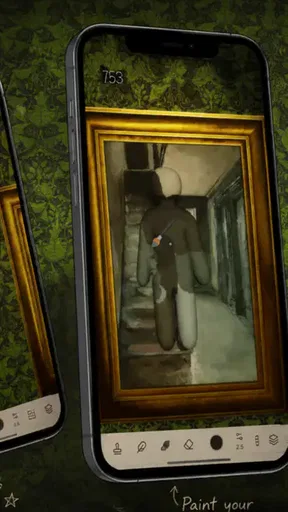

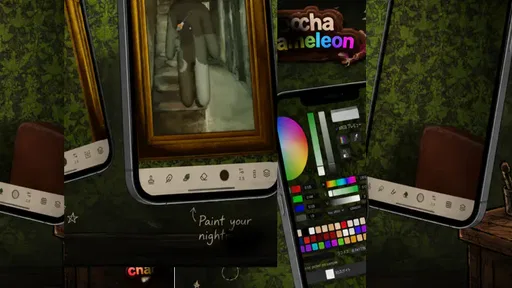
Our Review of Максимум AI Hub
 Analysis by Appyee
MAX SketchFlow AI is a free Android app from Hoti Himyala Dev that sits in the Libraries & Demo category, but its name points to a more creative use: turning the act of sketching into a guided, repeatable workflow. I approached it less like a one-tap novelty and more like a small workspace for testing ideas, practicing visual thinking, and deciding whether an AI-assisted drawing tool belongs in my daily routine.
My first impression was that the app makes the most sense when I give it a clear job. It is not something I would open only to admire a finished picture. I get more value when I use it to explore a rough concept, compare different directions, or move from a vague visual thought toward something I can explain to another person. That distinction matters because MAX SketchFlow AI works best as an idea-development tool, not as a replacement for a full professional illustration suite.
The app is free, carries an Everyone content rating, and is available for devices running Android 7.0 or later. Its current version is 3, while its release date is listed as July 17, 2026. The store page also shows over 500 thousand installs, which gives it a useful level of visibility without making it feel like an unavoidable mainstream default. The store summary identifies it as “SketchFlow AI by МАКС,” while the short description presents it as “MAX SketchFlow AI.”
How I use MAX SketchFlow AI from a blank idea to a usable sketch
I begin with a small visual question rather than a demand for a finished image, then use each sketch to decide what needs clarifying. That keeps the process manageable and makes it easier to tell whether the app is helping me think or merely giving me another result to browse. Once I have a direction worth keeping, I focus on making the sketch useful to someone else.
Start with a small, specific objective
The most reliable baseline workflow begins before I touch the app. Instead of asking myself to “make something good,” I choose a narrow purpose: a character pose, a room arrangement, a product shape, a visual note for a presentation, or a quick way to compare two moods. This prevents the session from becoming random experimentation. AI-assisted sketching can produce interesting directions quickly, but interesting is not always useful. A defined purpose gives me a way to judge the result.
I then build the first attempt around the essential subject and its role. For example, if I am exploring an idea for a reading corner, I focus first on the chair, light source, and surrounding space rather than trying to describe every decoration. This creates a clearer starting point and makes later changes easier to understand. When the initial request is overloaded with details, it becomes harder to tell which part of the result needs improvement.
One of my favorite everyday uses is preparing a visual explanation before a conversation. Suppose I want to suggest a new layout for a small work area at home. I can use the app to think through the arrangement, then show the sketch as a discussion aid. I do not treat it as an architectural plan. Its value is earlier in the process, when I need to communicate a direction and discover practical questions before spending time on polished work.
Review the result instead of accepting it immediately
The first output should be treated as a draft. I look for three things: whether the main subject is recognizable, whether the composition supports the intended idea, and whether the visual style distracts from the message. If the answer to any of these is no, I revise the request or simplify the goal. This habit is more productive than repeatedly generating variations without knowing what I am trying to fix.
I also separate concept review from detail review. At the concept stage, I ignore small imperfections and ask whether the image communicates the right idea. At the detail stage, I look for awkward proportions, confusing overlaps, or elements that compete for attention. Mixing these two evaluations too early can make a promising direction seem worse than it is.
A practical trick is to keep a short written note beside each attempt. I record what changed and whether the change helped. This is especially useful when several versions look similar. Without a note, I tend to remember the latest result more favorably simply because it is the latest one. A lightweight comparison habit turns the app from a novelty into a more deliberate sketchbook.
Use the app as a bridge, not the final destination
MAX SketchFlow AI is easier to appreciate when I decide what happens after the sketch. Sometimes the result is enough for a personal note. In other cases, it becomes a reference for drawing by hand, a prompt for a designer, or a visual starting point for another tool. Thinking about that next step changes how I judge the output. I do not need a perfect image if the sketch successfully answers the question I had at the beginning.
This is also where the app differs from a traditional drawing application. A conventional canvas gives me direct control over every mark, which is better when precision, consistency, and manual refinement are the priority. MAX SketchFlow AI is more useful when I want to test a direction quickly and accept some unpredictability in exchange for speed. Neither approach is automatically better; they serve different moments in the creative process.
Settings worth checking before building a routine
I recommend spending a little time examining the available controls before settling into a fixed workflow. The most important setting is not necessarily the most visually impressive one. I pay attention to anything that affects how I begin, revise, or review a sketch. A control that changes the starting behavior can save more time over several sessions than a decorative option I use once.
Because app interfaces can change between releases and devices, I avoid assuming that every control behaves exactly like a similar tool elsewhere. I read the label, test one change at a time, and observe whether it affects the canvas, the generated direction, or only the presentation. This cautious approach is particularly useful in version 3, where a familiar-looking control may still have a different purpose from the one I expect.
I also check the basic device experience: whether the text is comfortable to read, whether the workspace fits my screen, and whether the app remains convenient when I switch briefly to another note or reference. These details matter more than they sound. A creative workflow breaks easily when I have to fight the interface between every idea and every revision.
Choose settings according to the job
For quick brainstorming, I favor a simple setup with minimal decisions. I want to move from thought to rough visual direction without stopping to tune every option. For a more careful study, I slow down and keep the same general approach across several attempts so that I can compare them fairly. Changing multiple settings at once makes the comparison less meaningful because I no longer know which adjustment caused the improvement.
When I am preparing a sketch for someone else, I prioritize clarity over surprise. A dramatic or unusual result may be enjoyable, but a restrained version is often easier to discuss. If the purpose is personal exploration, I allow more variation. If the purpose is communication, I remove anything that could be mistaken for a firm promise or finished specification.
Another useful habit is to return to the default arrangement after an experimental session. I have found that creative tools become confusing when temporary choices quietly become permanent habits. Resetting gives me a known starting point the next time I open the app. It also helps me notice whether a new setting genuinely improves my process or merely felt exciting during one session.
Faster patterns for repeat users
Once the basic workflow feels familiar, I stop treating every sketch as a separate event. I use a repeatable sequence: define the purpose, describe the main subject, inspect the first direction, identify one weakness, and revise only that weakness. This single-change rule keeps the process understandable. If I alter the subject, style, layout, and level of detail together, I may get a better image, but I learn nothing about why it improved.
I also use a three-pass method. The first pass is for the broad idea, the second is for structure, and the third is for communication. In the first pass, I ask whether the concept exists clearly. In the second, I check relationships such as size, position, and visual hierarchy. In the third, I remove confusing elements and decide whether another person would understand what I am showing. This method works well for quick personal planning because it gives each attempt a clear purpose.
A less obvious advantage of this approach is that it reduces emotional attachment to one result. AI-assisted sketches can look appealing even when they do not solve the original problem. By assigning each pass a job, I am less likely to keep a visually attractive but impractical direction simply because it feels polished.
Build reusable language, not repetitive requests
I keep a small collection of phrases that describe recurring needs, such as a clean layout, a clear focal point, a rough concept, or a comparison between two arrangements. I do not copy them blindly. I combine them with the specific subject and purpose of the current session. This gives me consistency without making every result look as though it came from the same template.
For example, when exploring several versions of a poster idea, I keep the communication goal stable and change only the subject arrangement or visual emphasis. When exploring a room concept, I keep the practical constraints stable and test different focal points. This makes the app useful for comparison rather than just generation. The real gain comes from controlling the experiment, not from producing the largest number of images.
I find it helpful to name my own stages in plain language: idea, structure, and explanation. These labels are not app features; they are a personal system for staying organized. They make it easier to decide what to do next when a result is neither clearly successful nor clearly unusable.
Where the creative shortcuts stop helping
The app has a natural limit: speed and assistance do not equal exact control. If I need dependable measurements, repeatable character details, precise typography, or production-ready artwork, I would choose a dedicated drawing, design, or layout application instead. Those tools usually demand more manual work, but that effort buys control that a sketch-focused AI workflow cannot always provide.
There is also a risk of visual sameness. If I rely on the same type of request and accept the first appealing direction, my ideas can begin to feel predictable. I counter this by changing the question, not just the adjectives. Instead of asking for a more attractive version, I ask what would make the layout clearer, what would reduce clutter, or what would make the subject easier to recognize. Functional questions produce more useful revisions than vague requests for improvement.
Another limitation is evaluation. A sketch can look convincing while quietly ignoring a real-world constraint. In my room-layout example, the image may suggest a pleasant arrangement without proving that the furniture fits or that movement remains comfortable. I therefore use the app for discussion and exploration, then verify practical details separately. This is an important boundary for anyone tempted to treat an AI-generated concept as a final plan.
Privacy and account expectations are also worth considering before making the app part of a sensitive workflow. I would avoid entering confidential client material, private personal information, or unreleased product details unless I had independently reviewed the app’s current privacy terms and felt comfortable with them. That is not a criticism unique to this app; it is a sensible rule for any AI-assisted creative service.
Who will enjoy it most
MAX SketchFlow AI is a good fit for curious beginners, students, hobby artists, writers who need visual references, and anyone who often has an idea but struggles to give it a visible form. It can also help experienced creators during the early stage of a project, when speed matters more than final polish. The free price makes experimentation easy, especially for users who do not want to commit to a larger creative subscription before knowing whether this style of workflow suits them.
I would be more cautious about recommending it to a professional illustrator who needs complete brush control, dependable continuity, or a carefully managed production pipeline. A manual canvas or established design software is likely to be the better choice there. I would also steer away from it as the only tool for technical diagrams, formal plans, or any work where a plausible appearance could be mistaken for verified accuracy.
What I would tell a friend before installing
I would tell a friend to install it with one small project in mind rather than expecting a complete creative studio. Try a visual question that can be answered by a rough sketch. Use the first result to learn what needs changing, then repeat the process with one adjustment at a time. That test reveals the app’s real value much faster than browsing through random examples.
I would also mention that the app rewards patience with the process. The strongest habit is not generating more; it is learning how to describe the problem clearly and judge the result honestly. If a person wants instant finished artwork with no review or revision, the experience may feel less satisfying. If they enjoy exploring possibilities and narrowing them down, the same uncertainty becomes useful.
My verdict after making it part of a workflow
MAX SketchFlow AI is most convincing when used as a fast visual thinking companion. I like it for turning loose ideas into discussable sketches, comparing directions, and creating a starting point before moving into a more controlled tool. Its free access and Everyone rating make it approachable, and the Android 7.0 requirement keeps it available to users with older compatible devices.
My recommendation comes with a clear condition: use it for exploration, not blind verification. Keep the purpose of each sketch visible, change one variable when revising, and separate attractive results from useful ones. Those habits bring out more value than simply opening the app and accepting whatever appears first.
For me, the deciding question is not whether it can replace every alternative. It cannot, and it should not try to. The better question is whether I need a low-friction way to move from an unclear thought to a visual conversation. When the answer is yes, this app has a practical place in my toolkit. When precision, repeatability, or production polish comes first, I would move on to a dedicated creative application after using MAX SketchFlow AI only for the early ideas.
Verdict
Strengths of Максимум AI Hub
- Turns rough ideas into polished sketches with minimal effort.
- AI-assisted workflow helps speed up early concept development.
- Useful for exploring multiple visual directions quickly.
- Clean interface makes the main creative tools easy to access.
- Suitable for brainstorming, mockups, and rapid visual experimentation.
Limitations of Максимум AI Hub
- AI results may not always match the intended composition or style.
- Advanced features may require a subscription or in-app purchases.
- Generated artwork can need manual editing before it is presentation-ready.
- Creative controls may feel limited compared with professional design software.
- Processing quality and speed can vary depending on the device and connection.
Similar Picks in This Category
View All
PGT: GFX, Launcher & Optimizer
Trilokia Inc.4.5

AusweisApp Bund
Governikus Service GmbH3.7

Cardboard
Google LLC3.2

Gamers GLTool with Game Tuner
Trilokia Inc.4.5

Multi Web Chat - Read Secretly
World Scan & Cleaner3.8

App Cloner Premium & Add-ons
App Listo1.9
Frequently Asked Questions
What is MAX SketchFlow AI and what can it do?
MAX SketchFlow AI is an AI-powered creative tool designed to help users turn rough ideas, sketches, or written concepts into more polished visual results. It can be useful for brainstorming, creating concept art, developing design references, and experimenting with different visual styles. The exact results depend on the quality of your prompt or uploaded sketch, so it is best viewed as a creative assistant rather than a replacement for professional design software.
Is MAX SketchFlow AI free to download and use?
The application may be available to download at no initial cost, but some features can depend on subscriptions, credits, in-app purchases, or usage limits. Before creating multiple images or starting a trial, check the pricing information shown in the app store and inside the application. Also review whether the subscription renews automatically, because deleting the app usually does not cancel an active subscription.
Do I need an internet connection to use MAX SketchFlow AI?
Most AI-based features require an active internet connection because prompts, sketches, or other requests may be processed on remote servers. You may be able to open the app or review previously saved work offline, but generation and cloud-based tools may not function without Wi-Fi or mobile data. A stable connection is recommended, especially when uploading images or generating detailed results.
Can MAX SketchFlow AI create professional-quality designs?
MAX SketchFlow AI can produce useful and attractive concepts, but the quality may vary depending on the input, requested style, complexity, and current capabilities of the AI model. It is particularly helpful for early ideas, mood boards, visual exploration, and quick drafts. However, generated content may contain inaccuracies or unwanted details, so professional users should review and edit the results before using them commercially.
Is my content private when I use MAX SketchFlow AI?
Before uploading personal sketches, client materials, or confidential projects, read the app’s privacy policy and terms of service carefully. AI applications may send prompts and images to online servers for processing, and some services may store content temporarily or use data to improve their systems. Avoid submitting sensitive information unless you understand how it is handled and have confirmed that the app provides suitable privacy controls.
